



Hi, I’m Komail Abbas
a
Data Analyst Intern
Data Analyst Intern
Seeking a full-time Data Analyst position to leverage strong interpersonal skills, effective time management, and problem-solving abilities in addressing professional challenges. A dedicated and enthusiastic individual, ready to contribute to team success and help achieve company objectives. Holds a Data Analyst Certification, with expertise in SQL, Excel, Power BI, and Python, providing a solid foundation in data analysis and insights generation. Passionate about delivering data-driven solutions to support informed decision-making.
What I Do
Data Analyst
I possess strong skills in data analysis, including the ability to collect, analyze, and interpret large datasets to extract actionable insights. My expertise extends to statistical techniques and programming languages such as SQL and Python, enabling me to conduct thorough analyses and derive meaningful conclusions. Additionally, I am proficient in utilizing data visualization tools to present findings in a clear and concise manner, facilitating effective communication of insights to stakeholders.
Business Intelligence
With experience as a Business Intelligence Specialist, I have honed my ability to transform raw data into valuable insights that drive strategic decision-making within organizations. My proficiency lies in data modeling, reporting, and dashboard creation, allowing me to provide comprehensive business insights to stakeholders at all levels. I am adept at leveraging various tools and technologies to ensure the delivery of actionable insights that contribute to organizational success.
Power BI Specialist
As a Power BI Specialist, I excel in utilizing Microsoft Power BI for data visualization and analysis purposes. My skills include designing interactive dashboards, creating robust data models, and performing advanced analytics to empower users with intuitive reports and visualizations. By leveraging Power BI, I facilitate informed decision-making processes across the organization, enabling stakeholders to gain valuable insights into business performance and trends.
My Portfolio
The Situation:
Adventure Works is a fictional global manufacturing company that produces cycling equipment and accessories, with activities stretching across three continents (North America, Europe, and Oceania). Our goal is to transform their raw data into meaningful insights and recommendations for management. More specifically, we need to:
- Track KPIs (sales, revenue, profit, returns)
- Compare regional performance
- Analyse product-level trends
- Identify high-value customers
The Data:
We’ve been given a collection of raw data (CSV files), which contain information about transactions, returns, products, customers, and sales territories in a total of eight tables, spanning from the years 2020 to 2022.
The Task: We are tasked with using solely Microsoft Power BI to:
- Connect and transform/shape the data in Power BI’s back-end using Power Query
- Build a relational data model, linking the 8 fact and dimension tables
- Create calculated columns and measures with DAX
- Design a multi-page interactive dashboard to visualize the data in Power BI’s front-end
The Process:
1. Connecting and Shaping the Data
Firstly, we imported the data into the Power Query editor to transform and clean it. The next process involved:
Removing Duplicates: Duplicate entries were removed from the dataset to ensure accurate analysis.
Handling Null or Missing Values: For some columns, missing values were replaced with defaults or averages. Null values in “key” columns were removed using filters.
Data Type Conversion: Columns were converted to appropriate data types to ensure consistency. Dates were converted to Date type, numerical columns to Decimal or Whole Numbers, and text columns to Text.
Column Splitting and Merging: Several columns were split to separate concatenated information, or merged to create a unified name (such as Customer Full Name).
Standardising Date Formats: All date columns were formatted consistently to facilitate time-based analysis. This step was important for ensuring accurate time-series analysis in Power BI.
Removing Unnecessary Columns: Irrelevant columns were removed to streamline the dataset. This helped focus the analysis on relevant information, reducing memory usage and improving performance.
2. Building a Relational Data Model
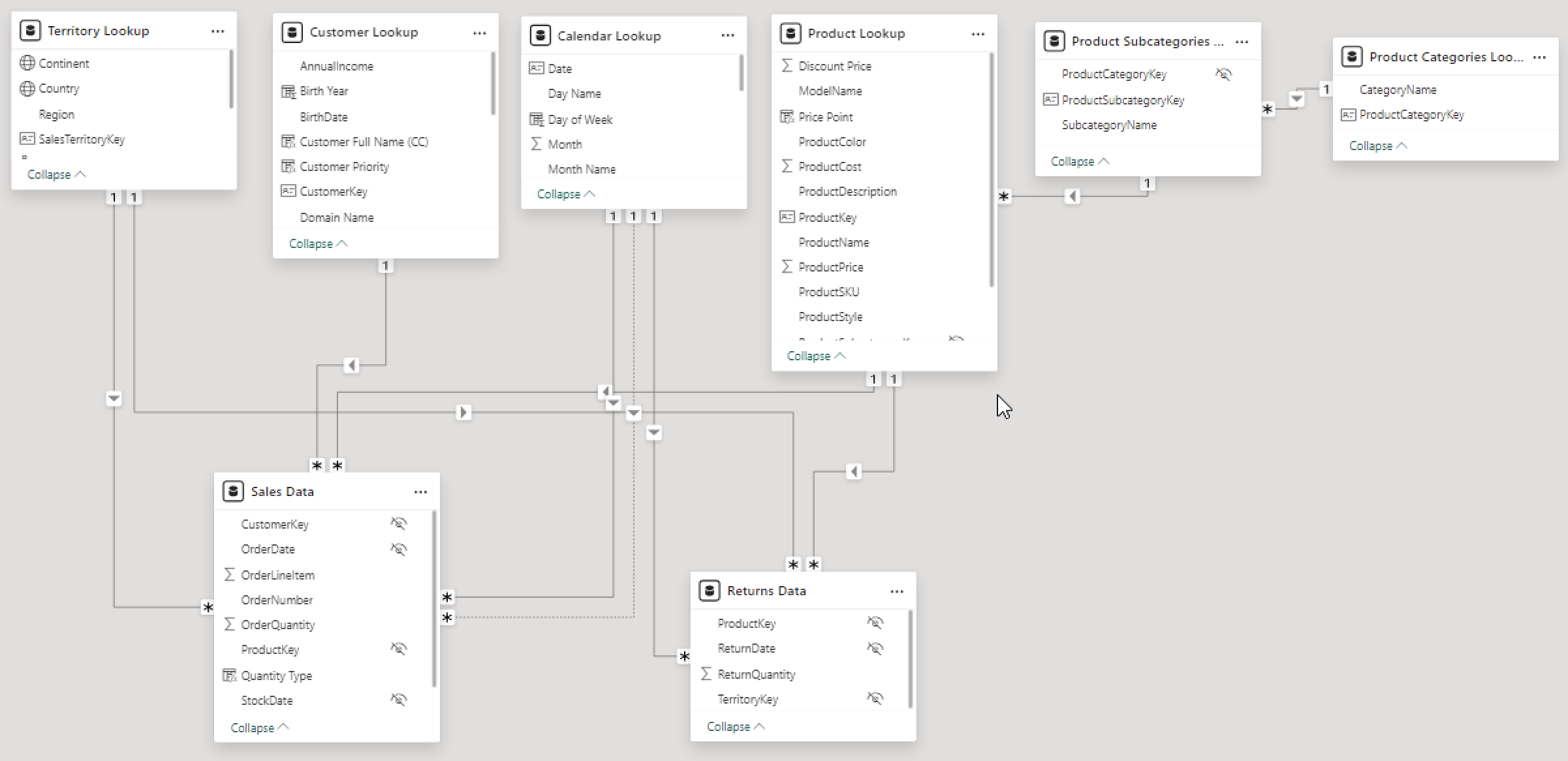
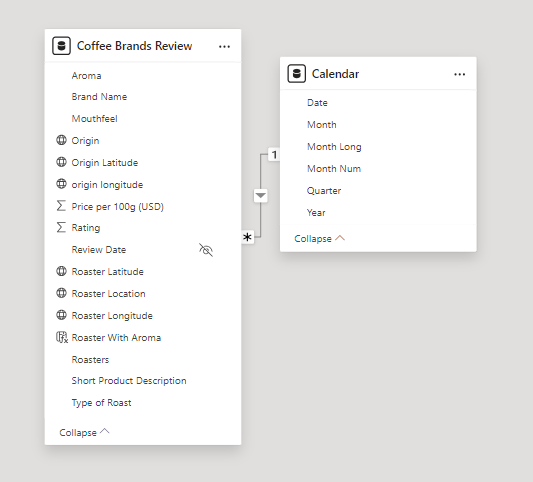
Secondly, we modeled the data to create a snowflake schema. This process involved creating relationships between the dimension and fact tables, ensuring cardinalities were one-to-many relationships.
Enabling active or inactive relationships, creating hierarchies for fields such as Geography (Continent-Country-Region) and Date (Start of Year-Start of Month-Start of Week-Date), and finally hiding the foreign keys from report view to ease the data analysis and visualization steps and reduce errors.

3. Creating Calculated Columns and Measures
Next, we used Power BI’s front-end formula language, DAX, to analyze our relational data model and create several calculated columns (for filtering) and measures (for aggregation), that we could later reference and use when analyzing and visualizing the data.
We used calculated columns to determine whether a customer is a parent (Yes/No), a customer’s income level (Very High/High/Average/Low), a customer’s priority status (Priority/ Standard), and the customer’s educational level (High School/ Undergrad/ Graduate).
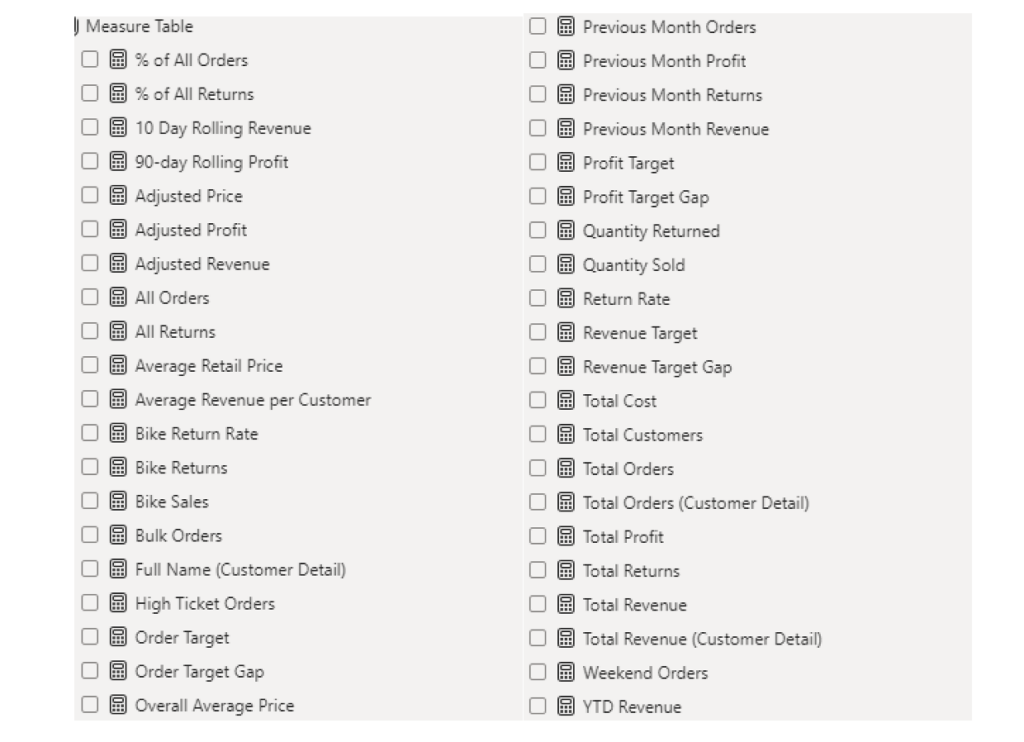
The list of calculated measures is available below and includes key information on revenue, profit, orders, returns, and more.

4. Visualising the Data
The final step of the project was creating a multi-page interactive dashboard, including a range of visuals and KPIs that could serve management and lead to informed decision-making. We used several visuals and tools to demonstrate and visualize the data across the 4 report pages, including KPI cards, line and bar charts, matrices, gauge charts, maps, donut charts, and slicers. We made sure the report was fully interactive and simple to navigate, with icons used to enable filters, cancel filters, and guide users to each report page with ease. Features such as drill-through, bookmarks, parameters, and tooltips were also used throughout the dashboard, further enhancing its usefulness and impact on management.
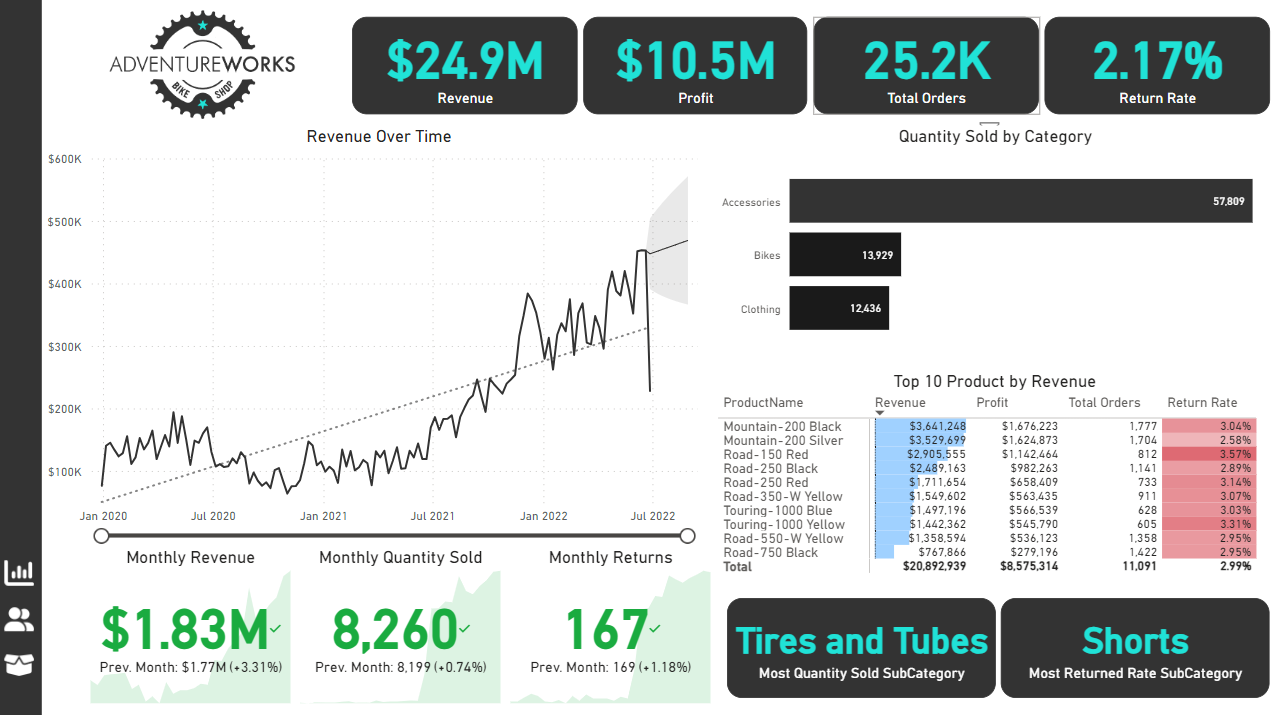
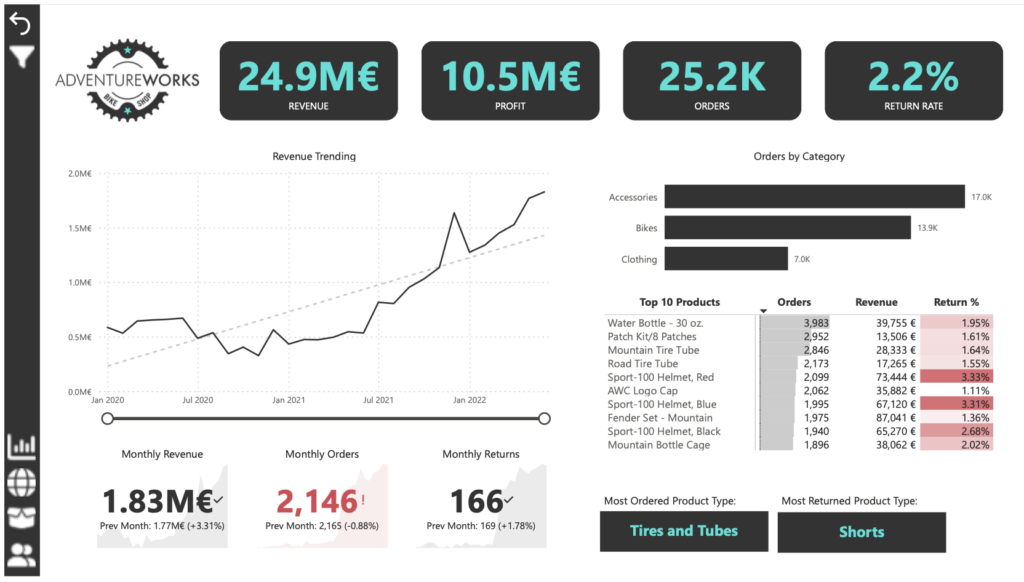
Executive Dashboard: The first report page provides a high-level view of Adventure Works’ overall performance. We used card visuals to present Key Performance Indicators such as overall revenue, profit margins, total orders, and return rates. We also included additional cards to compare current and previous month performances, providing insights into recent trends, a line chart to visualize the trending revenue from 2020-2022 and highlight long-term performance, and presented the number of orders by product category to aid in understanding product sales distribution, and used a further table to display the top 10 products based on key indicators (total orders, revenue, and return rate).

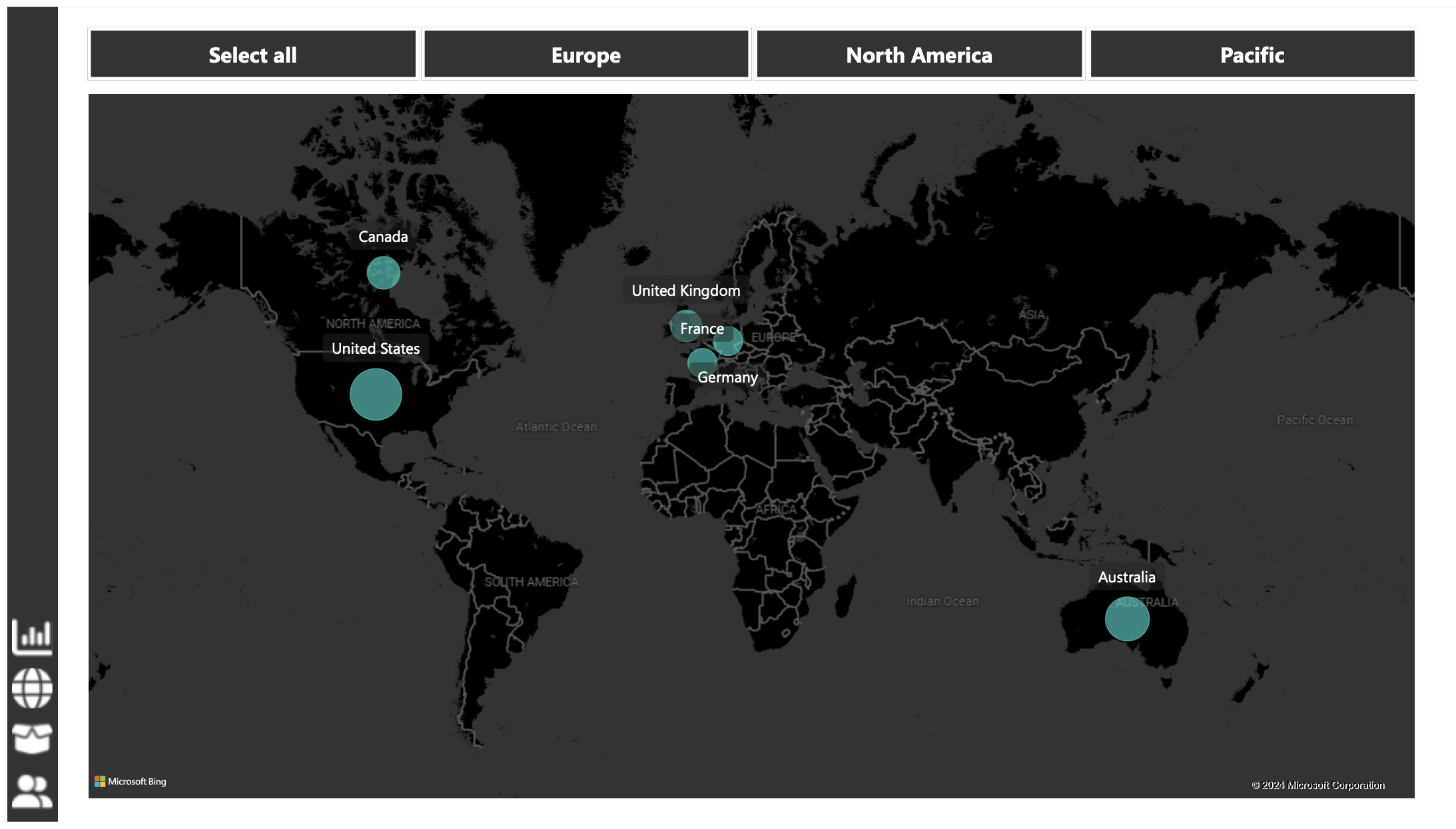
Map: The second report page consisted of a map visual, an interactive representation of sales volume across different geographical locations. This offered insight into Adventure Works’ global sales distribution and worldwide reach.

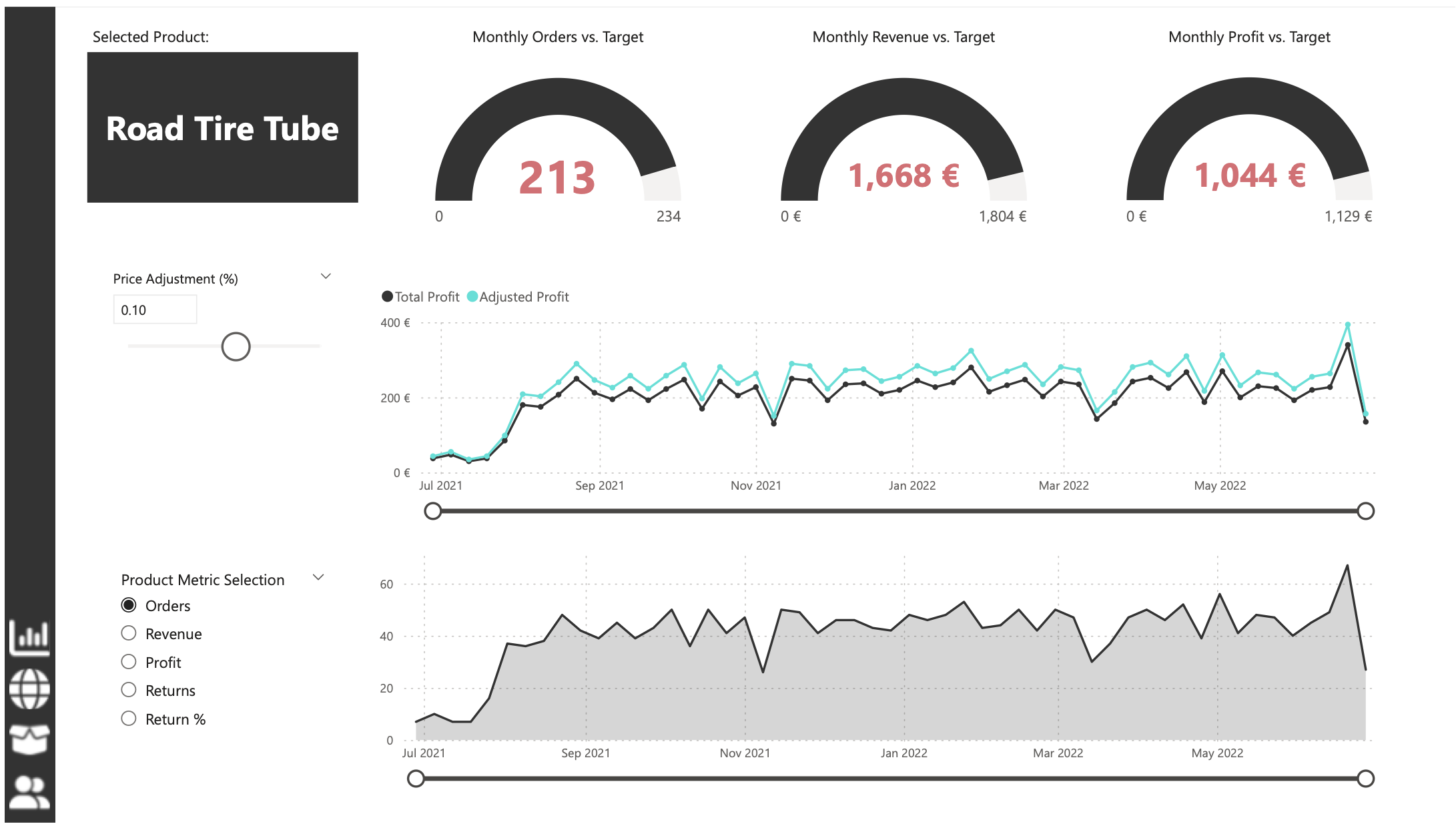
Product Detail: The third report page focuses on detailed product-level analysis. It displayed detailed product information for the selected top 10 products from the Executive Dashboard, using the drill-through feature. It also included gauge charts presenting actual performance vs target performance of monthly orders, revenue, and profit, and included an interactive line chart to visualize potential profit adjustments when manipulating the price of the product, aiding in strategic decision-making regarding pricing strategies. This report page also included a line chart including key weekly product information on total orders, revenue, profit, returns, and return rate.

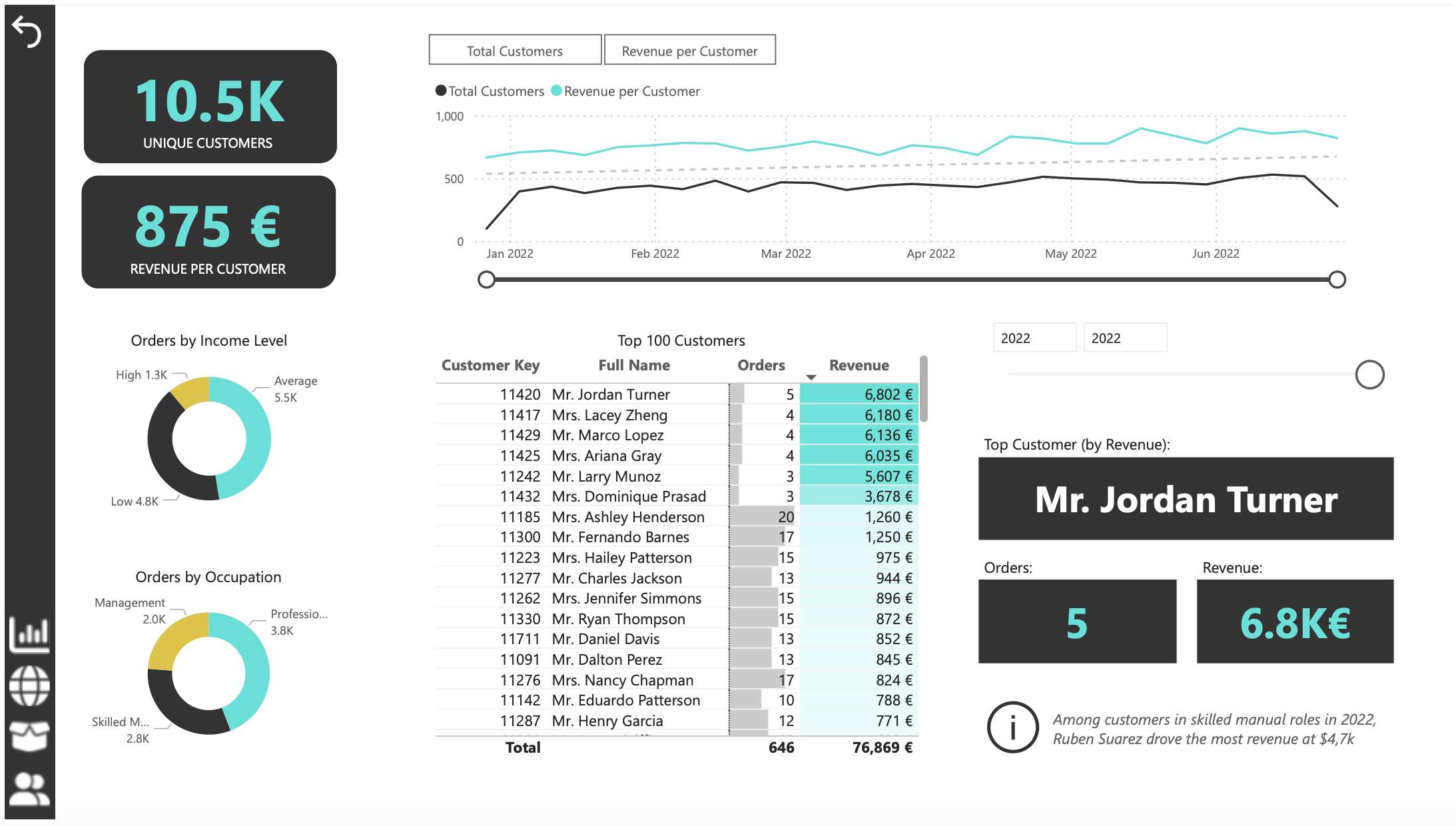
Customer Detail: The fourth and final report page provided a deeper insight into customer behavior and value. It used donut charts to break down customer groups into income level and occupation categories vs. total orders, helping in customer segmentation tactics, and used a matrix aided by KPI cards to identify high-value customers based on order and revenue contributions, aiding in identifying high-value customers and sales opportunities.

Oodles of Noodles (Power BI)
The Situation:
Oodles of Noodles is a fictional collection of data related to its sales across the United States. It encompasses various attributes, such as revenue, customer preferences, shipment time, etc. Our goal is to transform their raw data into meaningful insights and recommendations for management. More specifically, we need to:
- Track KPIs (revenue, meal kits sold, shipments, customer rating)
- Compare regional and state-level performance
- Identify high-value subscription plans and cuisine types
The Data:
We’ve been given a collection of raw data (CSV files), which contains information about shipments, returns, meal kits, customers, sales territories, and reviews, in a total of 9 tables, from the years 2020-21.
The Task:
We are tasked with using solely Microsoft Power BI to:
- Connect and transform/shape the data in Power BI’s back-end using Power Query
- Build a relational data model, linking the 9 fact and dimension tables
- Create calculated columns and measures with DAX
- Design a multi-page interactive dashboard to visualize the data in Power BI’s front-end
The Process:
1. Connecting and Shaping the Data
Firstly, we imported the data into the Power Query editor to transform and clean it. The process involved:
Removing Duplicates: Duplicate entries were removed from the dataset to ensure accurate analysis.
Handling Null or Missing Values: For some columns, missing values were replaced with defaults or averages. Null values in “key” columns were removed using filters.
Data Type Conversion: Columns were converted to appropriate data types to ensure consistency. Dates were converted to Date type, numerical columns to Decimal or Whole Numbers, and text columns to Text.
Column Splitting and Merging: Several columns were split to separate concatenated information or merged to create a unified name (such as Customer Full Name).
Standardizing Date Formats: All date columns were formatted consistently to facilitate time-based analysis. This step was important for ensuring accurate time-series analysis in Power BI.
Removing Unnecessary Columns: Irrelevant columns were removed to streamline the dataset. This helped focus the analysis on relevant information, reducing memory usage and improving performance.
2. Building a Relational Data Model
Secondly, we modeled the data to create a snowflake schema. This process involved creating relationships between the dimension and fact tables, ensuring cardinalities were one-to-many relationships.
We enabled active or inactive relationships, creating hierarchies for fields such as Geography (Continent-Country-Region) and Date (Start of Year-Start of Month-Start of Week-Date), and finally hid the foreign keys from the report view to ease the data analysis and visualization steps and reduce errors.

3. Creating Calculated Columns and Measures
Next, we used Power BI’s front-end formula language, DAX, to analyze our relational data model and create several calculated columns (for filtering) and measures (for aggregation) that we could later reference and use when analyzing and visualizing the data.
We used calculated columns to determine whether a customer is active and a loyal member.
The list of calculated measures includes key information on revenue, total shipments, reviews, SLA, and more.

4. Visualizing the Data
The final step of the project was creating a multi-page interactive dashboard, including a range of visuals and KPIs that could serve management and lead to informed decision-making. We used several visuals and tools to demonstrate and visualize the data across 4 report pages, including KPI cards, line and bar charts, matrices, gauge charts, and tree maps. We ensured the report was fully interactive and simple to navigate, with icons used to enable filters, cancel filters, and guide users to each report page with ease. Features such as drill-through, bookmarks, parameters, and tooltips were also used throughout the dashboard, further enhancing its usefulness and impact on management.
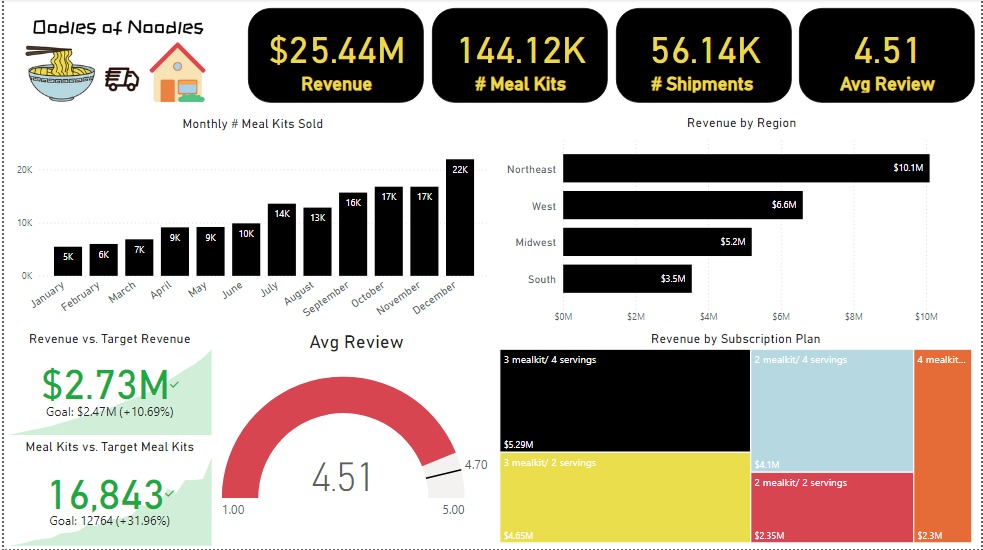
Executive Dashboard: The first report page presents an overview of Oodles of Noodles’ performance. We used card visuals for KPIs like revenue, meal kits sold, shipments, and average customer ratings. Additional cards compare current vs. previous month performance, showing trends, while a clustered bar chart displays revenue by region, a gauge chart shows average ratings, and a tree map highlights the top 5 subscription plans by revenue.

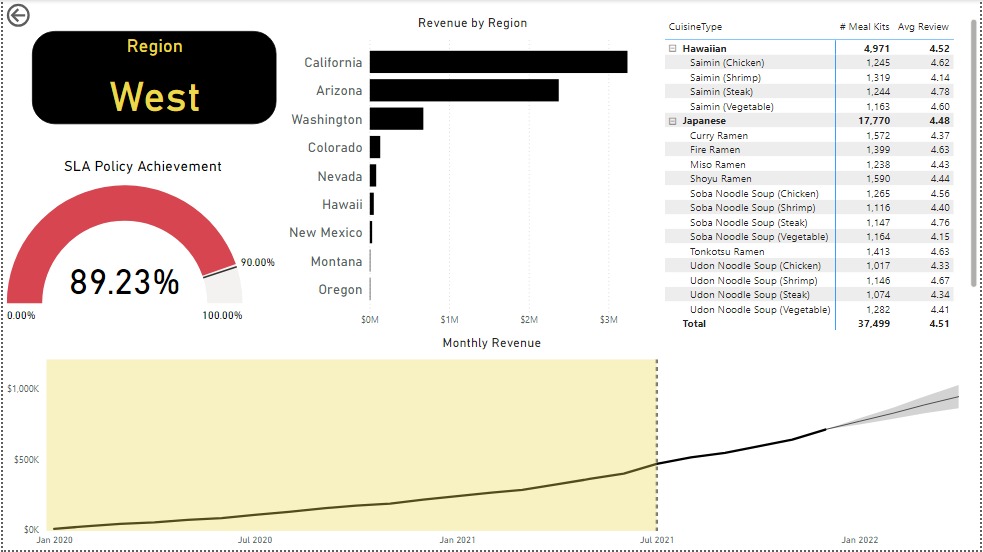
Region: The second report page is a drill-through by region for detailed performance analysis. It includes a bar chart for state-level revenue, a matrix showing cuisine types by meal kits sold and average ratings, a gauge chart for SLA policy adherence, and a line chart for revenue trends from 2020-2021. This page reveals Oodles of Noodles’ sales distribution by region and state.

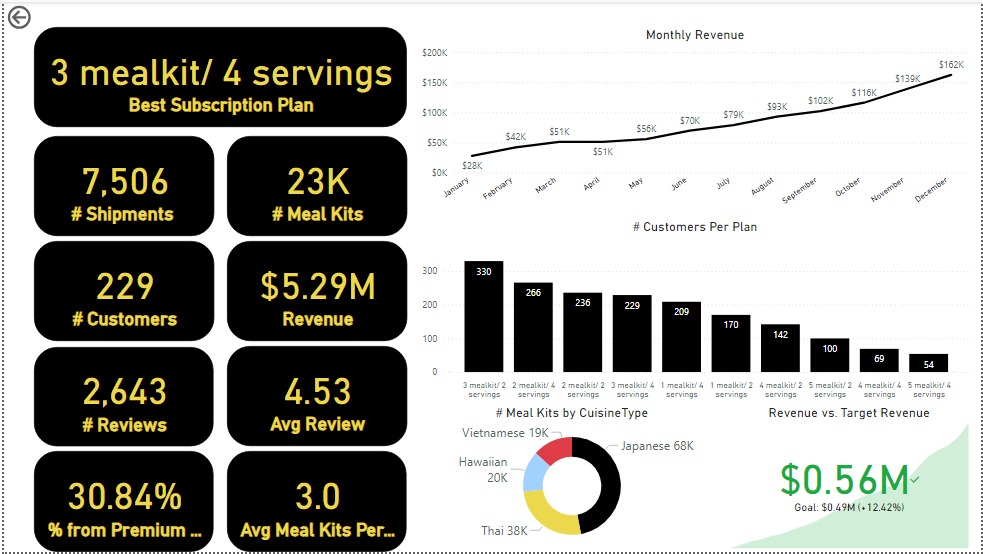
Subscription: The third report page dives into subscription-level analysis. It features a line chart of monthly revenue, cards showing the Best Subscription Plan with total shipments, meal kits, customers, revenue, reviews, average reviews per customer, premium plan percentage, and average meal kits per customer. Additionally, there’s a clustered column chart for customers per subscription plan, a donut chart for meal kits by cuisine, and a KPI card comparing current vs. previous month revenue.

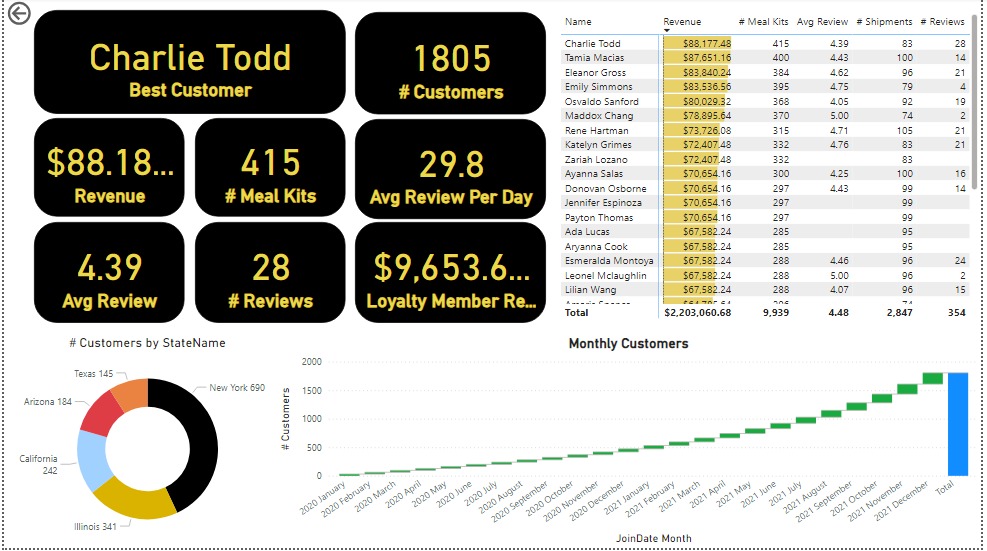
Customer Detail: The final report page provides deep insights into customer behavior. A donut chart shows total customers by state, a matrix lists meal kits, revenue, and reviews, and cards display total customers, average reviews per day, loyalty member revenue, the best customer’s revenue, reviews, average review, meal kits, average reviews, and shipments. Lastly, a waterfall chart shows Monthly Customers.

CRM and Sales Pipelines (Power BI)
The Situation:
CRM is a collection of data related to its sales across multiple countries. It encompasses various attributes, such as total leads, conversion rate, total deal value, etc. Our goal is to transform their raw data into meaningful insights and recommendations for management. More specifically, we need to:
- Track KPIs (total leads, total deal value, leads closed, closed deal value, conversion rate, lost rate.)
- Provide insights into lead distribution across countries, industries, and organization sizes.
- Identify the health of the sales pipeline, forecast potential income over the next few months, and compare sales agent performance.
The Data:
We’ve been given a collection of raw data (CSV file), which contains information about organizations, industries, country, product, lead acquisition date, expected and closed date, and deal value, in a total of 1 table, from January 2024 to September 2024.
The Task:
We are tasked with using solely Microsoft Power BI to:
- Connect and transform/shape the data in Power BI’s back-end using Power Query
- Build a relational data model, linking the 5 fact and dimension tables
- Create calculated columns and measures with DAX
- Design a multi-page interactive dashboard to visualize the data in Power BI’s front-end
The Process:
1. Connecting and Shaping the Data
Firstly, we imported the data into the Power Query editor to transform and clean it. The process involved:
Removing Duplicates: Duplicate entries were removed from the dataset to ensure accurate analysis.
Handling Null or Missing Values: For some columns, missing values were replaced with defaults or averages. Null values in “key” columns were removed using filters.
Data Type Conversion: Columns were converted to appropriate data types to ensure consistency. Dates were converted to Date type, numerical columns to Decimal or Whole Numbers, and text columns to Text.
Column Splitting and Merging: Several columns were split to separate concatenated information or merged to create a unified name.
Standardizing Date Formats: All date columns were formatted consistently to facilitate time-based analysis. This step was important for ensuring accurate time-series analysis in Power BI.
Removing Unnecessary Columns: Irrelevant columns were removed to streamline the dataset. This helped focus the analysis on relevant information, reducing memory usage and improving performance
2. Building a Relational Data Model
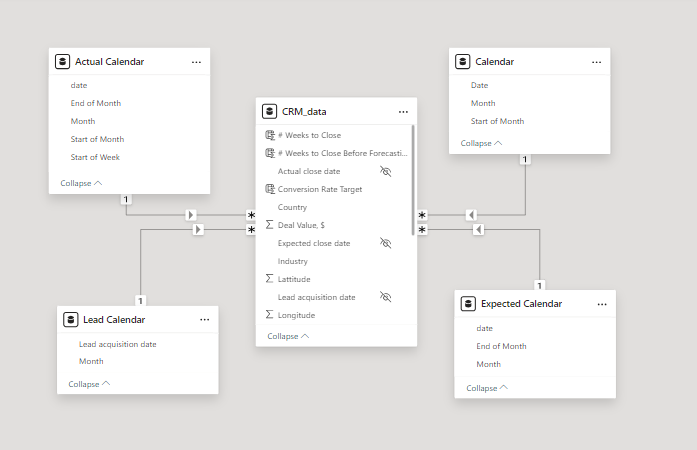
Secondly, we modeled the data to create a star schema. This process involved creating relationships between the dimension and fact tables, ensuring cardinalities were one-to-many relationships.
We enabled active or inactive relationships, created hierarchies for fields such as Date (Month-End of Month-Start of Month-Start of Week), and finally hid the foreign keys from the report view to ease the data analysis and visualization steps and reduce errors.

3. Creating Calculated Columns and Measures
Next, we used Power BI’s front-end formula language, DAX, to analyze our relational data model and create several calculated columns (for filtering) and measures (for aggregation) that we could later reference and use when analyzing and visualizing the data.
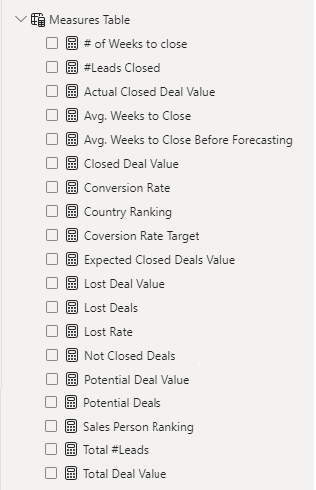
The list of calculated measures includes avg. weeks to close, # of leads closed, lost deal value, sales person ranking and more.

4. Visualizing the Data
The final step of the project was creating a multi-page interactive dashboard, including a range of visuals and KPIs that could serve management and lead to informed decision-making. We used several visuals and tools to demonstrate and visualize the data across 2 report pages, including KPI cards, line and column charts, matrices, bar charts, and pie charts. We ensured the report was fully interactive, with slicers used to enable filters, and allow users to each report page with ease. Features such as parameters were also used throughout the dashboard, further enhancing its usefulness and impact on management.
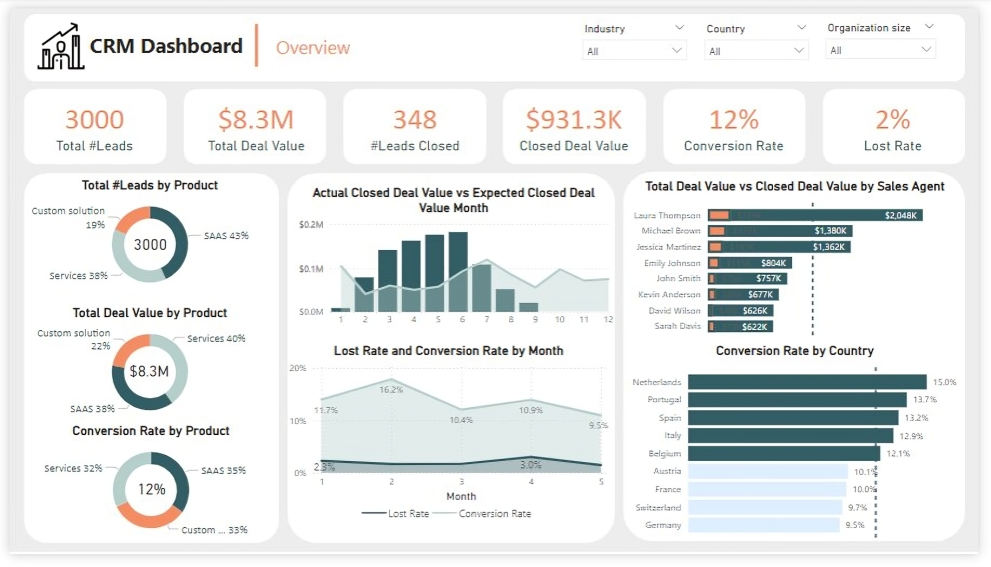
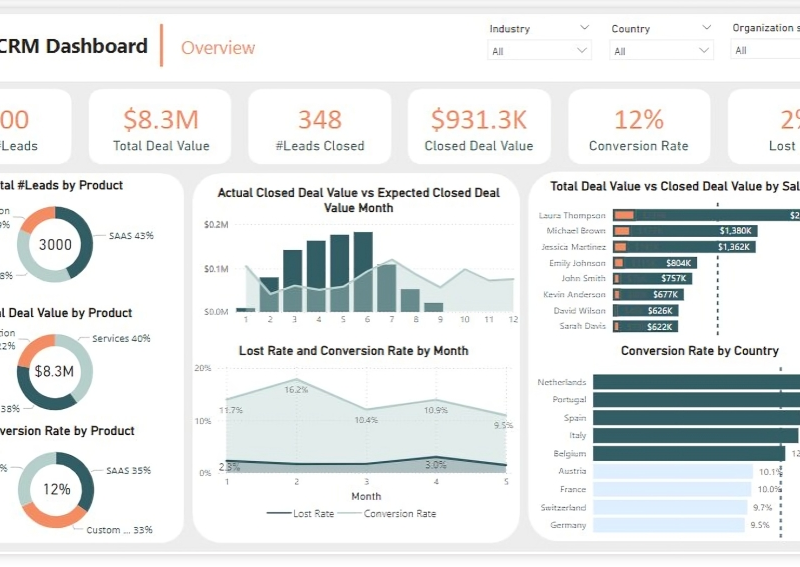
Overview Dashboard: The first report page provides a high-level view of CRM’s overview. We used card visuals to present Key Performance Indicators such as Total Leads, Total Deal Value, # Leads Closed, Closed Deal Value, Conversion Rate and Lost Rate. We also included pie charts to show distribution of total leads, total deal value and conversion rate between products, a line chart to represent monthly lost rate and conversion rate, a line and clustered column chart to compare actual closed deal value and expected closed deal value by month, a clustered bar chart to show comparison between total deal value and closed deal value by sales agent, and a clustered bar chart to display conversion rate by country.

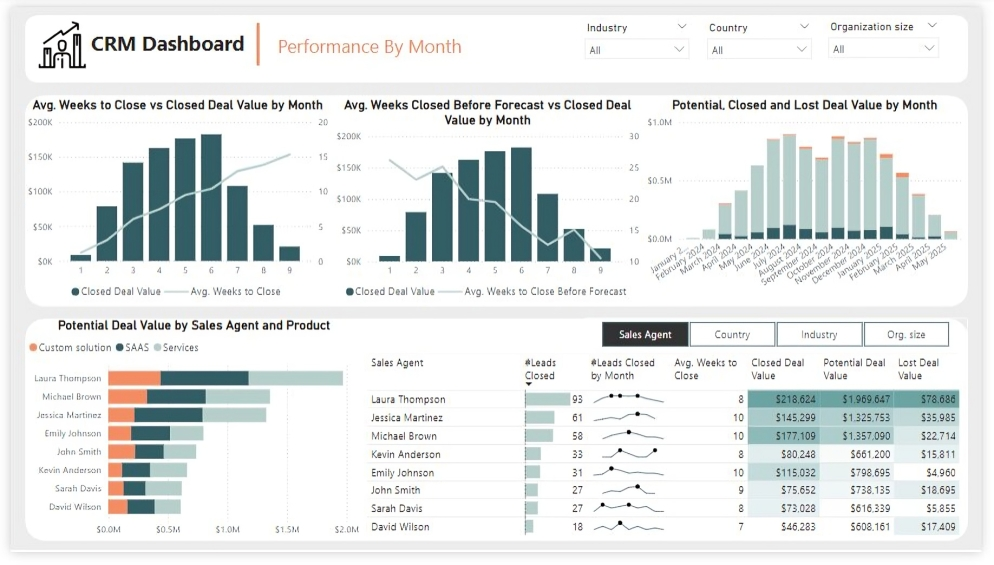
Performance by Month: The second report page is to further analyze the sales agent performance and monthly distribution of closed, expected and potential deal values. It consists of a line and clustered column chart that shows average weeks to close vs closed deal value by month, second line and clustered column chart to display average weeks closed before forecast vs closed deal value by month, a stacked column chart to show potential, closed and lost deal value from January to September 2024, a stacked column chart to display distribution of potential deal value by sales agent and product, and a matrix that visualizes performance of salespersons, countries, industries and organization size in closed leads, average weeks, and closed, potential and lost deal values, with addition of spark lines to display their monthly closed leads.

Marketing Campaign Analysis (Power BI)
The Situation:
The Marketing Campaign Analysis dataset is provided by a UK-based clothing retailer, containing data on sales performance throughout the United Kingdom. It includes details such as revenue, campaigns, devices, channels, and more. Our goal is to transform this raw data into insightful recommendations for management. Specifically, we aim to:
- Monitor key performance indicators (KPIs) like revenue, profit, clicks, and customer ratings.
- Evaluate campaign performance across cities, channels, devices, and individual advertisements.
The Data:
We received CSV files containing information on campaigns, channels, devices, clicks, conversions, impressions, ads, and location in a single table, covering the period from March 2023 to November 2023.
The Task:
We are tasked with employing solely Microsoft Power BI to:
- Connect and transform/shape the data using Power Query.
- Construct a relational data model linking fact and dimension tables.
- Create calculated columns and measures using DAX.
- Design a multi-page interactive dashboard to visualize the data.
The Process:
1. Connecting and Shaping the Data
Firstly, we imported the data into the Power Query editor for transformation and cleaning. This process involved:
Removing Duplicates: Duplicate entries were eliminated from the dataset to ensure accurate analysis.
Data Type Conversion: Columns were adjusted to appropriate data types for consistency. Dates were converted to Date type, numerical columns to Decimal or Whole Numbers, and text columns to Text.
Standardizing Date Formats: All date columns were formatted uniformly to facilitate time-based analysis, a crucial step for ensuring accurate time-series analysis in Power BI.
Removing Unnecessary Columns: Irrelevant columns were discarded to streamline the dataset. This helped focus the analysis on essential information, reducing memory usage and enhancing performance.
2. Building a Relational Data Model
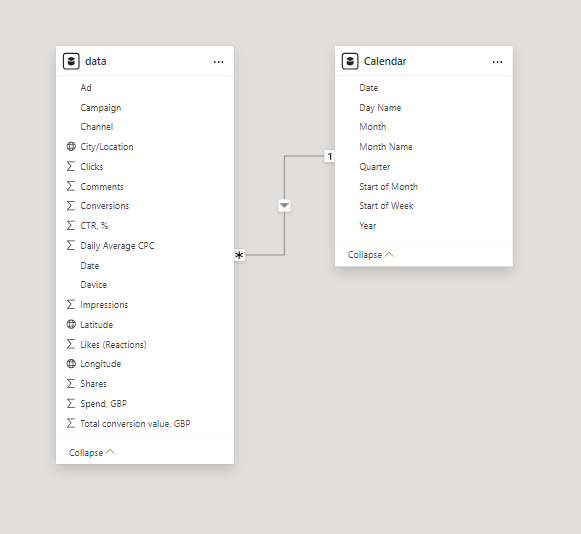
Secondly, we modeled the data to create a snowflake schema. This process involved establishing relationships between the dimension and fact tables, ensuring cardinalities were set to one-to-many relationships.
We hid the foreign keys from the report view to simplify data analysis and visualization steps and minimize errors.

3. Creating Calculated Columns and Measures
Next, we utilized Power BI’s front-end formula language, DAX, to analyze our relational data model and produce several calculated columns (for filtering) and measures (for aggregation) for later reference when analyzing and visualizing the data.
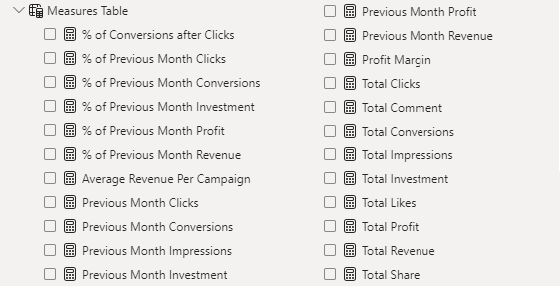
The list of calculated measures includes key information on revenue, profit, impressions, clicks, conversions, investment, and more.

4. Visualizing the Data
The final step of the project was the creation of a multi-page interactive dashboard, featuring a variety of visuals and KPIs that could assist management and facilitate informed decision-making. We employed several visuals and tools across 3 report pages, including KPI cards, line, column and bar charts, matrices, donut charts, tree maps, and map charts. We ensured the report was fully interactive and easy to navigate, incorporating icons to enable filters, remove filters, and guide users to each report page with ease. Features such as parameters and navigation buttons were also included throughout the dashboard, further enhancing its utility and impact on management..
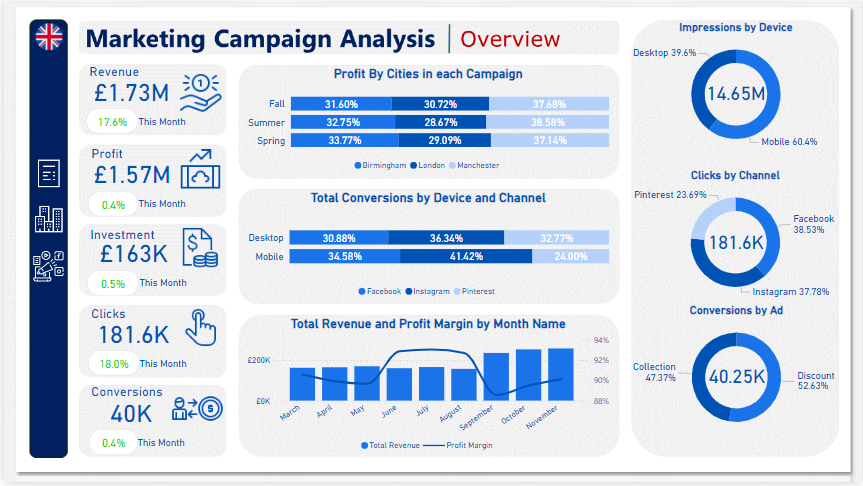
Overview Dashboard: The first report page provides a high-level view of the overall performance of Marketing Campaigns. We used card visuals to present Key Performance Indicators such as total revenue, profit, investment, clicks, and conversions. Additionally, we included two 100% stacked bar charts: the first to analyze the distribution of profit generated by cities in each campaign, and the second to observe the distribution of conversions achieved from various channels on each device. A line and stacked column chart was also included to compare revenue and profit margins by month, along with three donut charts to showcase total impressions by devices, clicks by channels, and conversions by ads, each donut chart also displaying the total of matrices.

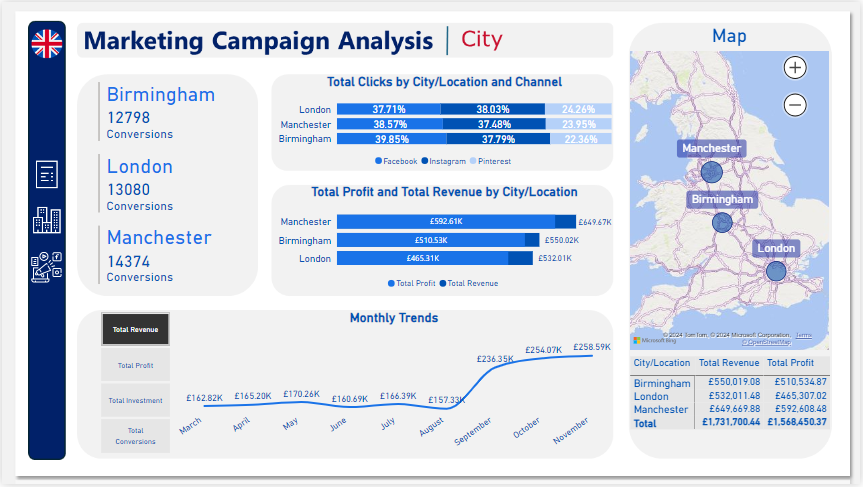
City: The second report page acts as a navigation page by city to further analyze performance in specific locations. It consists of cards illustrating the number of conversions in each city, a 100% stacked bar chart that displays the percentage of total clicks tracked on each channel across different cities, a clustered bar chart revealing the revenue and profit generated in each city, a map chart displaying total revenue by city, and a matrix chart showing revenue and profit by city. A line chart with matrices slicer visualizes the trending revenue, profit, investment, and conversions from March 2023 to November 2023, highlighting long-term performance. This provides insights into Oodles of Noodles’ sales distribution by city.

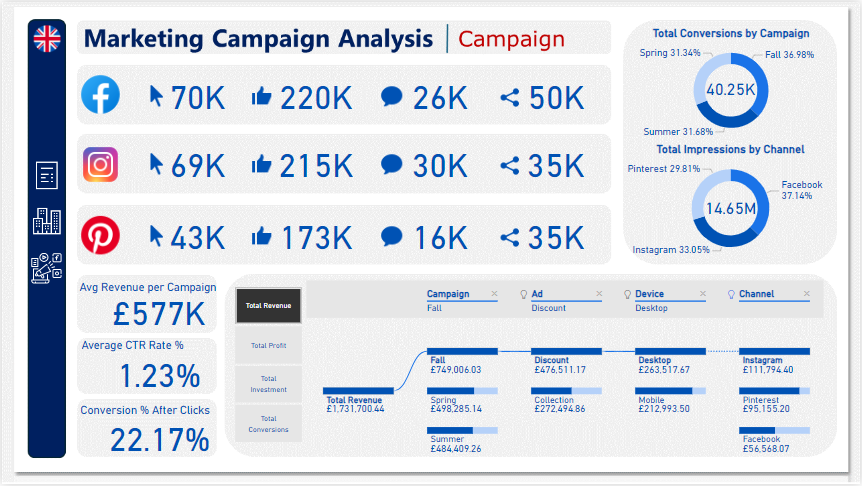
Campaign: The third and final report page focuses on detailed campaign performance. It includes cards displaying total clicks, likes, comments, and shares by channel, as well as additional cards showing average revenue per campaign, average CTR rate percentage, and conversion rates after clicks. Two donut charts illustrate conversions by campaign and impressions by channels, each displaying total matrix values. Additionally, a decomposition tree was employed to analyze the breakdown of total revenue, profit, investment, and conversion into various categories, including campaigns, ads, devices, and channels.

E-commerce KPI Analysis (Power BI)
The Situation:
E-commerce KPI Analysis is a collection of data related to its sales across multiple countries around the world. It encompasses various attributes, such as orders, sales, products, market, etc. Our goal is to transform their raw data into meaningful insights and recommendations for management. More specifically, we need to:
- Track KPIs (orders, sales, profit, quantity, profit margin)
- Compare regional and state-level performance
- Identify product effectiveness and customer behavior
The Data:
We’ve been given a collection of raw data (CSV files), which contains information about orders, quantity, sales, discount, products, categories, customers, segments, regions, markets and others, in a total of a single table, from the years 2020-23.
The Task:
We are tasked with using solely Microsoft Power BI to:
- Connect and transform/shape the data in Power BI’s back-end using Power Query
- Build a relational data model, linking the 2 fact and dimension tables
- Create calculated columns and measures with DAX
- Design a multi-page interactive dashboard to visualize the data in Power BI’s front-end
The Process:
1. Connecting and Shaping the Data
Firstly, we imported the data into the Power Query editor to transform and clean it. The process involved:
Removing Duplicates: Duplicate entries were removed from the dataset to ensure accurate analysis.
Data Type Conversion: Columns were converted to appropriate data types to ensure consistency. Dates were converted to Date type, numerical columns to Decimal or Whole Numbers, and text columns to Text.
Standardizing Date Formats: All date columns were formatted consistently to facilitate time-based analysis. This step was important for ensuring accurate time-series analysis in Power BI.
2. Building a Relational Data Model
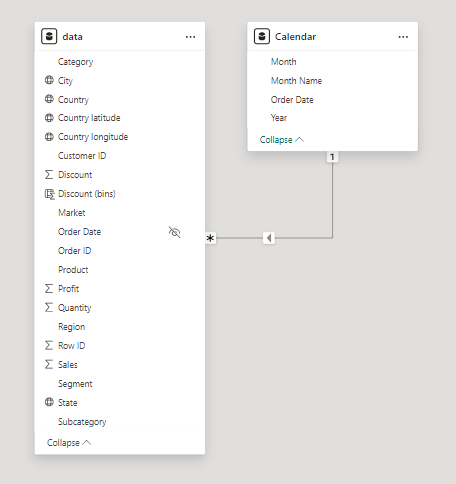
Secondly, we modeled the data to create a snowflake schema. This process involved creating relationships between the dimension and fact tables, ensuring cardinalities were one-to-many relationships.
We enabled active or inactive relationships, created hierarchies for fields such as Geography (City-State-Country-Region) and finally hid the foreign keys from the report view to ease the data analysis and visualization steps and reduce errors.

3. Creating Calculated Columns and Measures
Next, we used Power BI’s front-end formula language, DAX, to analyze our relational data model and create several calculated columns (for filtering) and measures (for aggregation) that we could later reference and use when analyzing and visualizing the data.
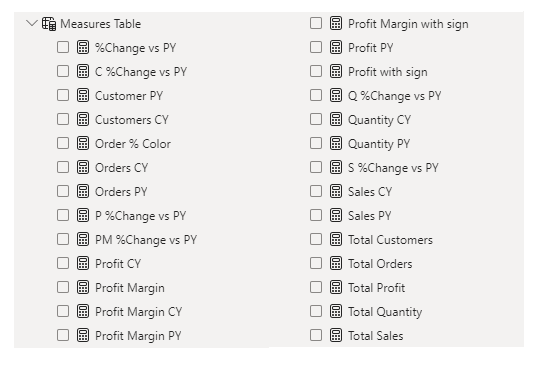
We used calculated columns to categorize discount into defined groups. The list of calculated measures includes key information on sales, customers, orders, profit, quantity, and more.

4. Visualizing the Data
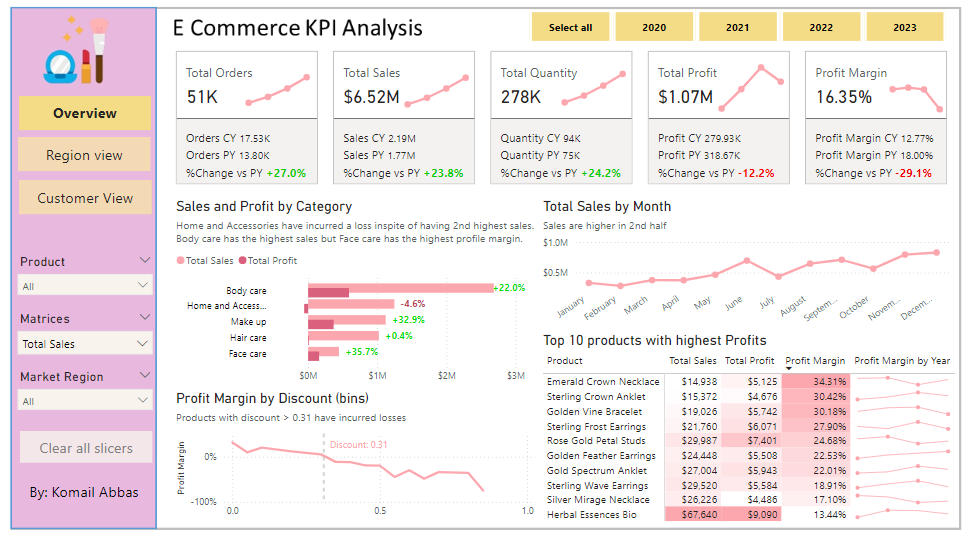
The final step of the project was creating a multi-page interactive dashboard, including a range of visuals and KPIs that could serve management and lead to informed decision-making. We used several visuals and tools to demonstrate and visualize the data across 3 report pages, including KPI cards, line, column and bar charts, matrices, donut charts, slicers, and maps. We ensured the report was fully interactive and simple to navigate, with icons used to enable filters, cancel filters, and guide users to each report page with ease. Features such as bookmarks and parameters were also used throughout the dashboard, further enhancing its usefulness and impact on management.
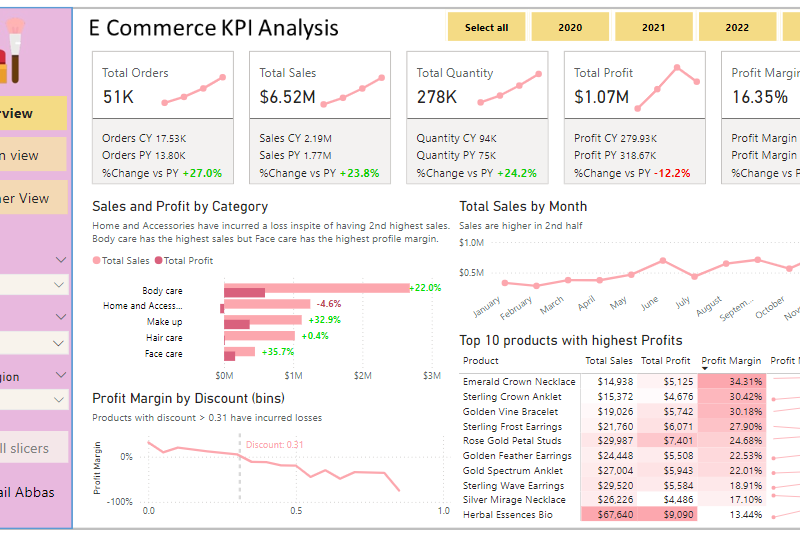
Overview Dashboard: The first report page provides a high-level view of overall performance. We used card visuals to present Key Performance Indicators such as overall sales, number of orders, quantity sold, profit and profit margin. We also included current and previous year performances of those matrices, providing insights into recent trends, a clustered bar chart to show sales and profit by product category, a line chart to display sales monthly trends, another line chart to show profit margin by discount segments, and a matrix to display the top 10 products with their overall sales, profit, profit margin profit margin by year.

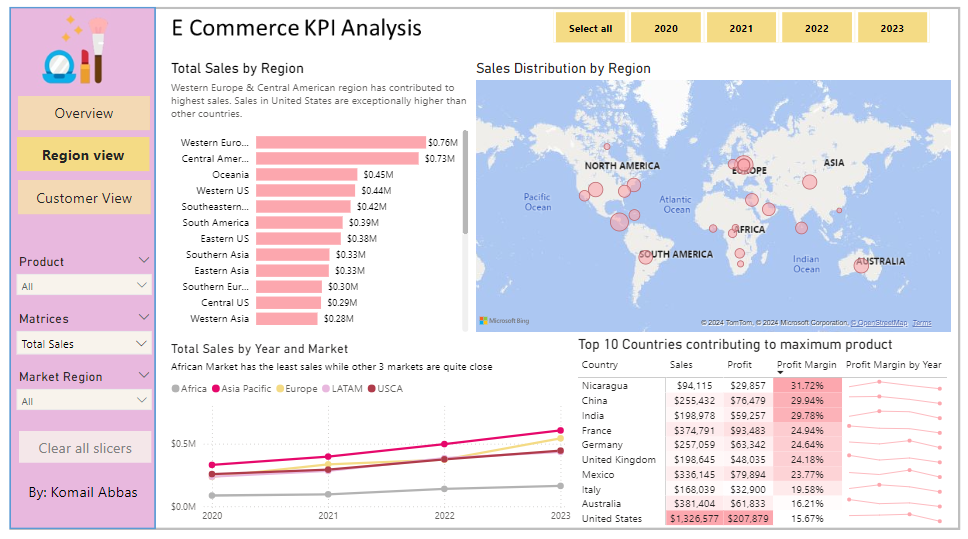
Region View: The second report page is a regional overview page to further analyze the performance in a specific region. It consists of a clustered bar chart that shows sales by regions, a map chart to display sales distribution by regions, a line chart to visualize yearly sales of markets, and a matrix chart that displays top 10 countries with their sales, profit, profit margin and profit margin by year. This offers insight into sales distribution by region.

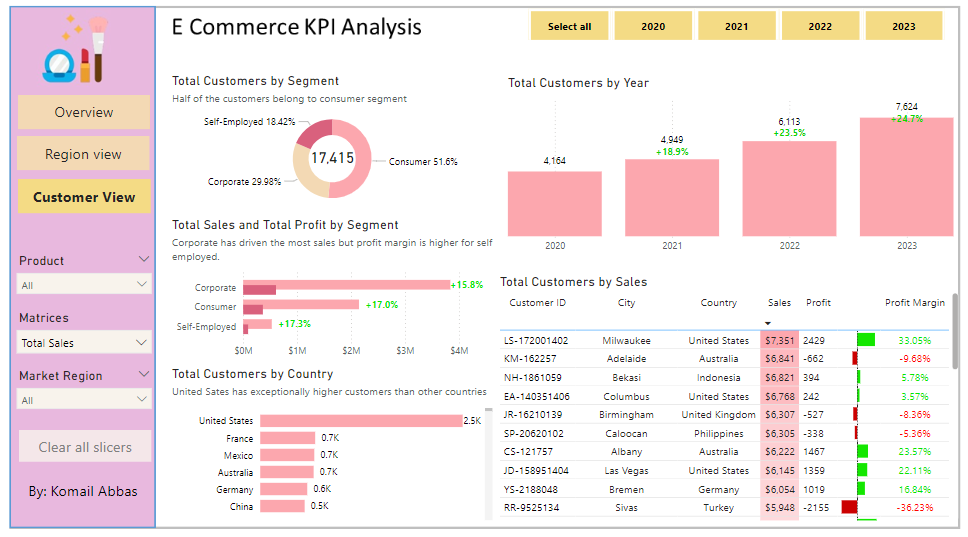
Customer View: The third and final report page provides deeper insight into customer behavior and value. It uses a donut chart to show total customers by segments, a column chart to show total customers by year, a clustered bar chart to display total sales and profit generated by segments, one more bar chart to show total customers by country, and a matrix to present customer’s purchase details, including city and country of order, sales, generated profit and profit margin.

Coffee Brand Review Analysis (Power BI)
The Situation:
Coffee Brand Review Analysis is a collection of data related to its reviews on various coffees of different origins and roasts. It encompasses various attributes, such as brand name, roasters, origin, price, rating, etc. Our goal is to transform their raw data into meaningful insights and recommendations for management. More specifically, we need to:
- Track KPIs (total coffee brands, total origin, highest rating, average rating)
- Compare coffee origin and roaster location performance
- Analyze relationship between coffee price and rating
- Identify customer preference and brand performance
The Data:
We’ve been given a collection of raw data (CSV file), which contains information about coffee brand name, roasters, roaster location, origin, rating, price per 100 bag in USD and more, in a total of a single table, from the years 2017-22.
The Task:
We are tasked with using solely Microsoft Power BI to:
- Connect and transform/shape the data in Power BI’s back-end using Power Query
- Build a relational data model, linking the 2 fact and dimension tables
- Create calculated columns and measures with DAX
- Design a multi-page interactive dashboard to visualize the data in Power BI’s front-end
The Process:
1. Connecting and Shaping the Data
Firstly, we imported the data into the Power Query editor to transform and clean it. The process involved:
Handling Null or Missing Values: For some columns, missing values were replaced with defaults or averages. Null values in “Type of Roast”, “Aroma” and “Mouthfeel” columns were removed using filters.
Data Type Conversion: Columns were converted to appropriate data types to ensure consistency. Dates were converted to Date type, numerical columns to Decimal or Whole Numbers, and text columns to Text.
Standardizing Date Formats: All date columns were formatted consistently to facilitate time-based analysis. This step was important for ensuring accurate time-series analysis in Power BI.
2. Building a Relational Data Model
Secondly, we modeled the data to create a snowflake schema. This process involved creating relationships between the dimension and fact tables, ensuring cardinalities were one-to-many relationships.
We enabled active or inactive relationships and hid the foreign keys from the report view to ease the data analysis and visualization steps and reduce errors.

3. Creating Calculated Columns and Measures
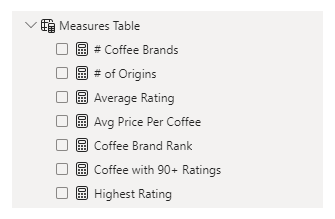
Next, we used Power BI’s front-end formula language, DAX, to analyze our relational data model and create several calculated columns (for filtering) and measures (for aggregation) that we could later reference and use when analyzing and visualizing the data. The list of calculated measures includes key information on number of coffee brands, number of origins, average rating, average rating per coffee, coffee with 90+ ratings, coffee brand rank and highest rating.

4. Visualizing the Data
The final step of the project was creating a multi-page interactive dashboard, including a range of visuals and KPIs that could serve management and lead to informed decision-making. We used several visuals and tools to demonstrate and visualize the data across 3 report pages, including KPI cards, line, column and bar charts, matrices, scatter chart, donut chart, and maps. We ensured the report was fully interactive and simple to navigate, with icons used to enable filters, cancel filters, and guide users to each report page with ease. Features such as drill-through, bookmarks, and parameters were also used throughout the dashboard, further enhancing its usefulness and impact on management.
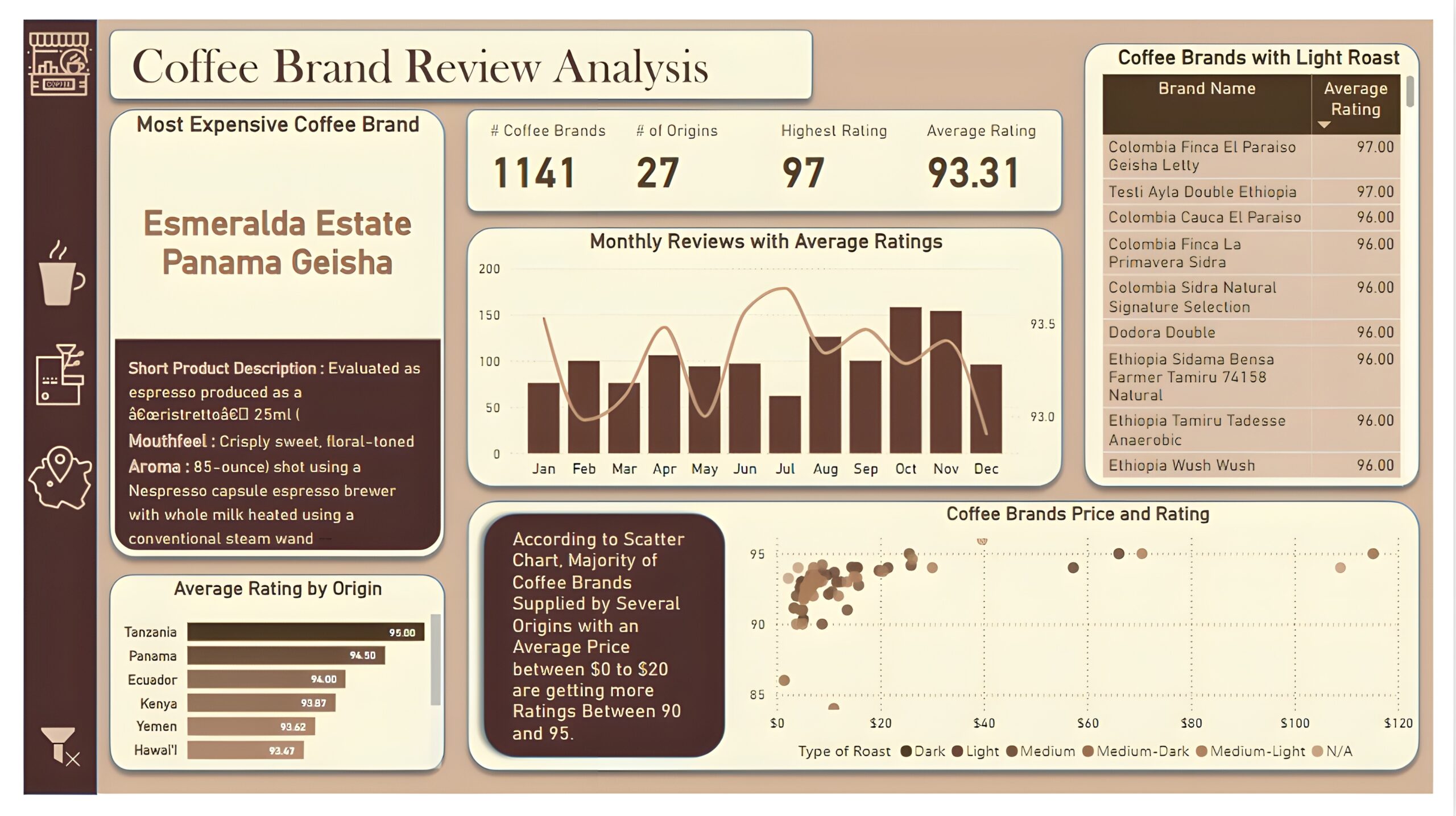
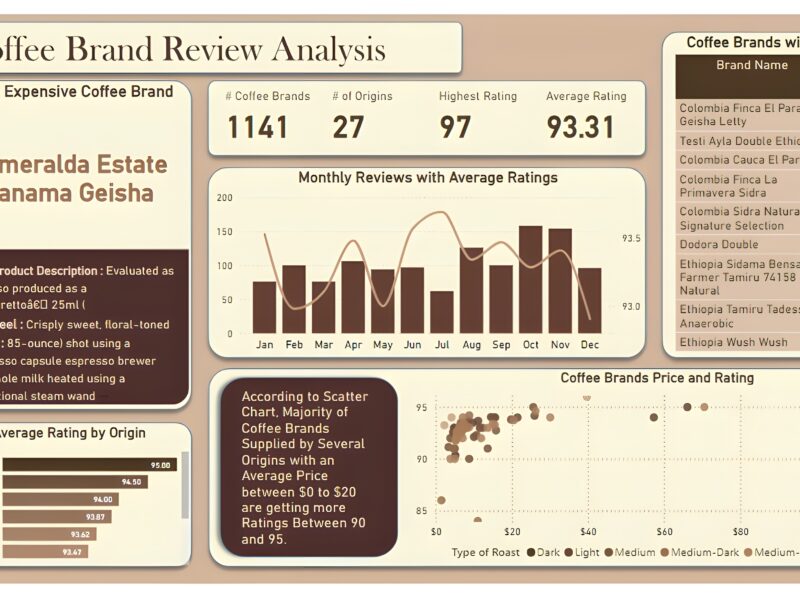
Overview Dashboard: The first report page provides a high-level view of overall performance. We used card visuals to present Key Performance Indicators such as number of coffee brands, number of origins, highest rating, and average rating. We also included additional card to present the most expensive coffee brand including its short product description, mouthfeel and aroma, a line and column chart to display monthly reviews with average ratings, a bar chart to show top 10 origins with average rating, a matrix that displays coffee brands with light roast, and a scatter chart to show relationship between coffee price and ratings.

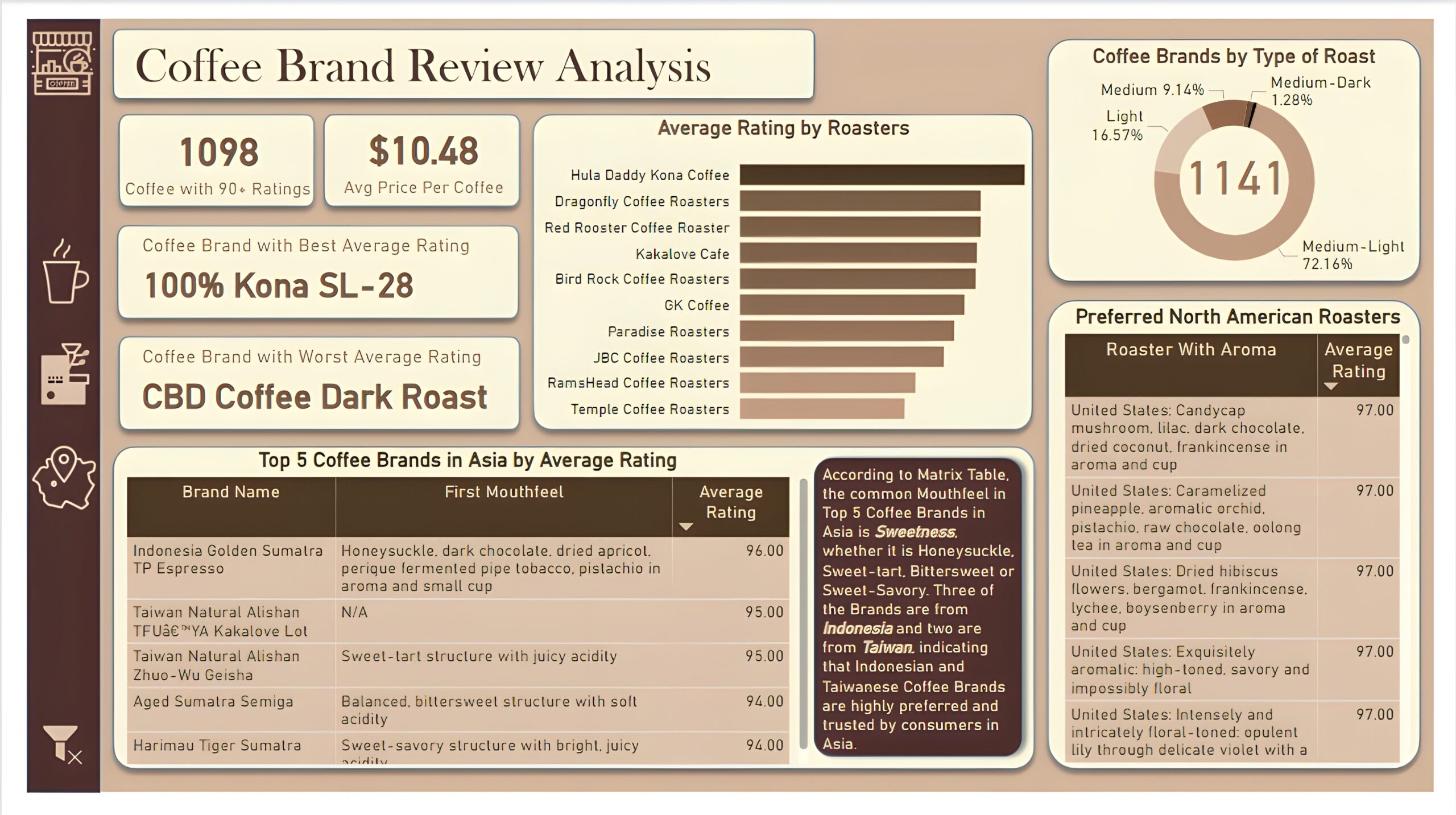
Brand and Roaster Performance: The second report page focuses on brand and roaster analysis. It displays information such as number of coffees with 90+ ratings, average price per coffee and names of coffee brands with best and worst average rating, a clustered bar chart to visualize average rating by roasters, a donut chart to display coffee brands by types of roasts, a matrix that shows the top 5 brand names in Asia by average rating, including mouthfeel and average rating of those brands, and another matrix chart that displays preferred coffee roasters of North America with their aroma and average rating.

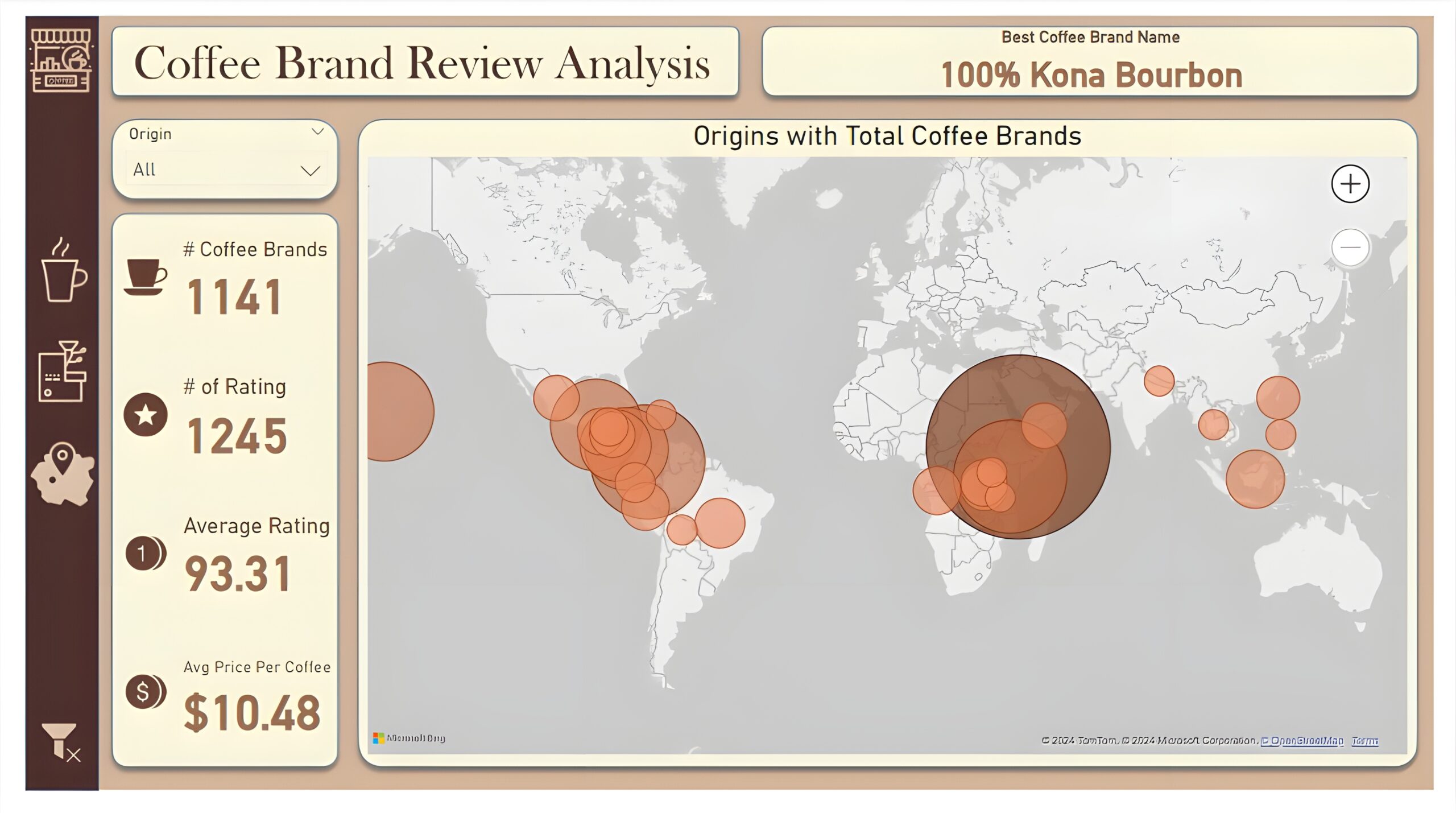
Coffee Origin: The third and last report page is a drill-through page by coffee origin to further analyze the performance in a specific origin. We have included a slicer that allows user to filter and view data based on any coffee origin throughout the entire report. The report consists of a card that displays best coffee brand name of each origin. Additional cards are used to show number of coffee brands, number of rating, average rating, and average price per coffee. And a map chart that visualizes origins with most number of coffee brands.

My Resume
Experience Background
Data Analyst
AL Khalil Builders and Marketing (Jun 2021 - Present)
- Developed and maintained automated reports using SQL and Python, reducing manual data
processing time by 40%
- Conducted in-depth data analysis on customer behaviour, resulting in a 15% increase in targeted
marketing effectiveness.
- Collaborated with cross-functional teams to define key performance indicators (KPIs) and establish
data-driven business strategies.
- Created and implemented data cleansing processes, improving overall data accuracy and integrity.
Designed and maintained Power BI dashboards for visualizing key business metrics, facilitating
data-driven decision-making at all organizational levels.
- Conducted statistical analysis on large datasets to identify trends and patterns, providing actionable
insights for decision-making.
- Conducted A/B testing to optimize website functionality, leading to a 20% increase in user
engagement.
- Assisted in the development and implementation of machine learning models for predictive
analytics, resulting in a 25% improvement in forecast accuracy
Data Scientist
E-Soft Pvt Ltd (Jan 2020 - Apr 2021)
- Working in collaboration with Product Managers to understand the challenges towards a product
development and provide a solution with ML & AI techniques.
- Implemented Recommendation System to improve the products sale in the consumer market.
- Fraud detection using different Kernel methods and Neural networks.
- Creating Image recognition model using Tensorflow.
- Analysis of ROC & AUC curve for the binary Classification data.
- Created Regression, Classification and Clustering models for different datasets.
- Identifying the Residuals in Linear & Non-Linear models.
- Analyzing the R`2 in the Linear prediction model.
- Performing Residual analysis of the data with its Residual plot.
- Predicting and analyzing multi-collinearity in the models.
- Analyzing the given data sets by splitting it into Training & Test data.
- Loading, summarizing & visualizing the data.
- Built K-Means, Db-Scan, Agglomerative & Hierarchical Clustering models
- Identifying the minima in the Scree plot to analyze the clustering model.
- Performing Anova test for the model.
Data Science Intern
E-Soft Pvt Ltd (Jun 2018 - Aug 2018)
- Performed feature engineering by transforming raw data into features that can be used by ML
algorithms.
- Collaborated with product managers and engineers on data collection methods for improving
accuracy of predictions.
- Analyzed large datasets to uncover insights, trends, and patterns using Python.
Education Background
Bachelor's Degree in Engineering
Mirpur University of Science and Technology (2015-2019)Electrical Electronics Engineering, CGPA : 3.85/4
Soft Skill
Leadership & Strategic Planning
Training and Development
Teamwork and Coordination
Recruiting & Onboarding
Communication & Presentation
Technical Skill
STATISTICS
MICROSOFT EXCEL
POWER BI
STRUCTURED QUERY LANGUAGE SQL
PYTHON
Certifications
Professional Data Analyst Certification Program
Analytix Camp (Jan 2024 – July 2024)
1. Proficient in Excel: Demonstrated ability to manipulate data, perform complex calculations, create pivot tables, and generate insightful visual.
2. Power BI Specialization: Capable of designing interactive dashboards and reports to visualize data trends and patterns, enabling stakeholders to make informed business decisions..
3. Proficient in SQL: Profound understanding of SQL querying language, adept at extracting and manipulating data from relational databases to conduct thorough data analysis and generate meaningful insights.
4. Strong foundation in Statistics: Possess a solid grasp of statistical concepts such as hypothesis testing, regression analysis, and probability theory, enabling accurate interpretation of data and formulation of data-driven recommendations.
5. Competent in Python: Proficient in utilizing Python programming language for data manipulation, analysis, and visualization tasks, leveraging libraries such as Pandas, NumPy, and Matplotlib to derive actionable insights from diverse datasets.
6. Comprehensive understanding of Data Analysis Methodologies: Equipped with a holistic understanding of various data analysis techniques and methodologies, including exploratory data analysis (EDA), and regression analysis, to extract actionable insights and drive business growth.
7. Effective Communication and Presentation Skills: Able to effectively communicate complex analytical findings to diverse stakeholders through clear and concise reports, presentations, and visualizations, facilitating informed decision-making processes across organizational levels.
Verification Link: Fahad Farooq Certification - Analytix Camp
Learning Git and Github
Linkedin Learning (Feb 2019)
Testimonial
Muhammad Abbas
Chief Executive OfficerPower BI Project Development
via Fiverr - Mar 30, 2024 - Apr 30, 2024I am pleased to commend Muhammad Kumail outstanding dedication and achievements. They consistently exhibit a strong work ethic and enthusiasm for learning, contributing positively to our academic environment. Their willingness to take on challenges and their commitment to excellence are truly commendable. Muhammad Kumail is not only a high achiever academically but also a supportive and collaborative member of our community. Their accomplishments serve as an inspiration to their peers and reflect their potential for continued success in the future.

Contact With Me